Post and grow3 min read
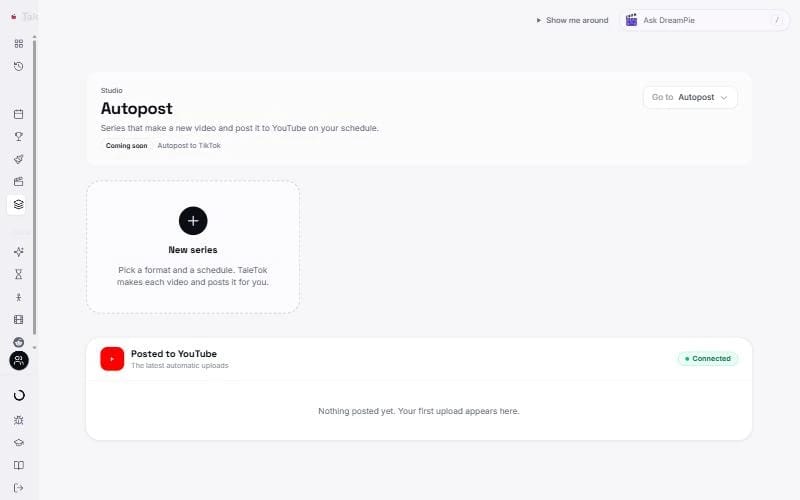
Autopost a series
Set up a series once and TaleTok makes and posts new videos on your schedule.
Create a seriesA series keeps your channel posting even when you are busy. You choose the format, the topics and the times. TaleTok makes each video and posts it for you. Autopost goes to YouTube.
You need a paid plan and a connected YouTube channel. See Connect your YouTube channel.
Create a series
- Open Autopost under Studio in the sidebar.
- Press New series.
- Under Pick a format choose from Shorts or Long videos.
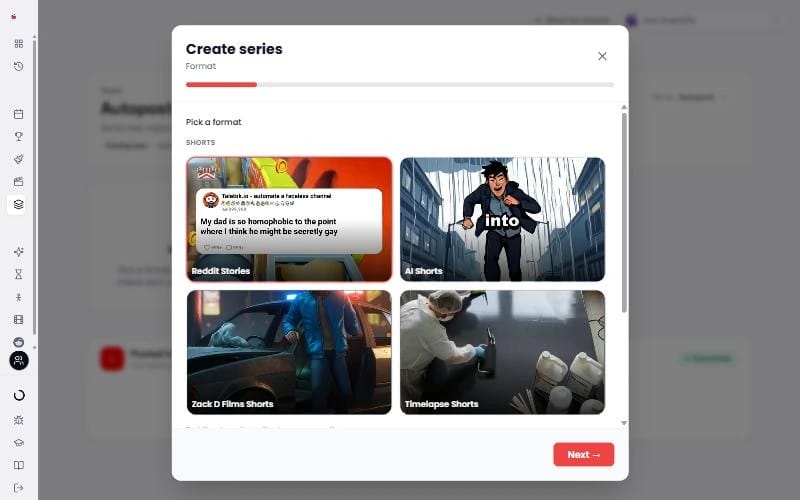
Shorts walk you through a few short steps:
- Format. The kind of video to make.
- Name. What to call this series.
- Look. The art style, for AI Shorts.
- Topics. What the videos should be about.
- Voice. The narrator.
- Schedule. Which days and times to post.
- Review. Check everything, then save.
Long videos (2D Stickman, Dark Stories, 3D Documentary and the explainers) ask for:
- Series name, What is the channel about? and Topics. Press Suggest topics for ideas.
- A template or look, a Narrator and the Length of each video. On 2D Stickman, Music and sound effects are off to start with, and the switch shows what they add.
- The schedule: Every day or Some days, a Time and a Time zone.
Press Create series. Every video is then made and posted for you.
What it costs
Each video uses the same credits as making it yourself, charged as it is made, and failed work is refunded. See How credits and plans work. The setup shows the credits per video, and a banner warns you if your plan will not cover the month.
On Starter you can post 2 days a week. Every day needs Pro or Optimum.
Change a series later
Each series has Pause, Resume, Edit and Delete. Shorts list their next posts under Coming up: pick one to change it with Edit scheduled post. Finished uploads are listed under Posted to YouTube, and also show on the Studio calendar.
Keep learning
2 min read
Connect your YouTube channel
Link your channel once to track growth and post videos straight from TaleTok.
2 min read
Schedule a finished video to YouTube
Pick a day and time and TaleTok posts your video for you.
2 min read
Make every video look on brand
Pick a format, then set its look, clone a style and choose your narrator.
2 min read
Clone a style from a video link
Paste a video or picture and TaleTok makes a look for the format you are setting up.